Guía de usoUser guide
Folio · Pascu Softworks
Folio hace dos cosas: abre tus documentos (PDF, Word, Excel, PowerPoint, OpenDocument y texto) y te deja escribir hojas con fotos, dibujos, listas y recordatorios. Todo en el teléfono, sin cuentas y sin internet.
Folio does two things: it opens your documents (PDF, Word, Excel, PowerPoint, OpenDocument and text) and lets you write sheets with photos, drawings, lists and reminders. All on the phone, with no account and no internet.
- Documentos y NotasDocuments and Notes
- Escribir una hojaWriting a sheet
- Fotos y dibujosPhotos and drawings
- Papel, pauta y páginaPaper, ruling and page
- Guardar y exportarSaving and exporting
- RecordatoriosReminders
- Etiquetas, fijar, bloquearTags, pinning, locking
- Widget y compartir con FolioWidget and sharing to Folio
- Leer documentos y buscarReading and searching documents
- Firmar o anotar un PDFSigning or annotating a PDF
- IA en el teléfonoAI on the phone
- Ajustes y copia de seguridadSettings and backup
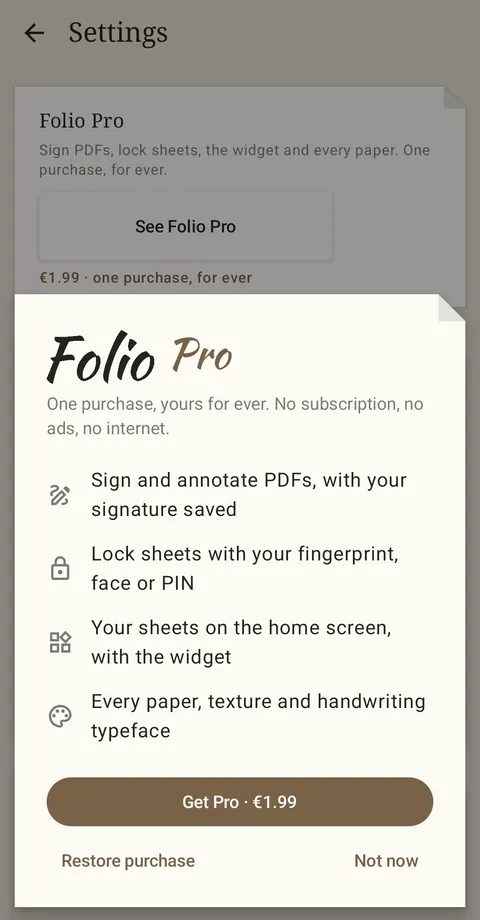
- Folio Pro
1Documentos y NotasDocuments and Notes
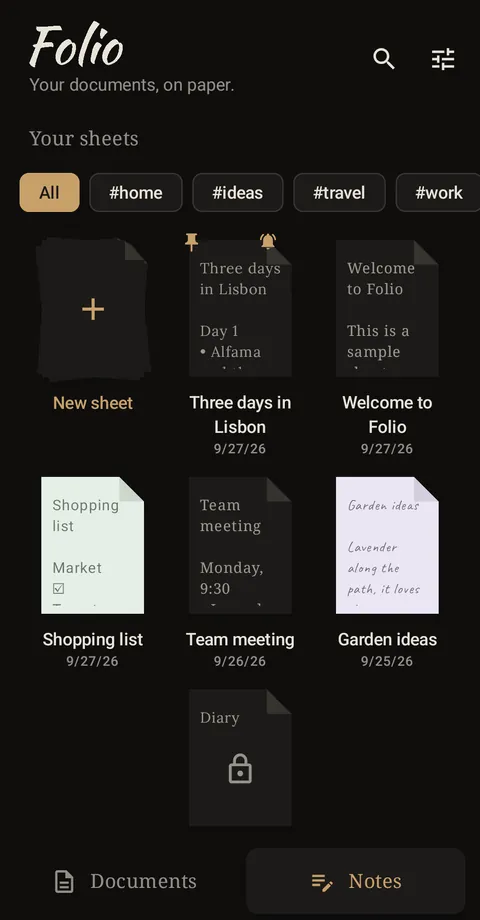
Abajo hay dos pestañas:
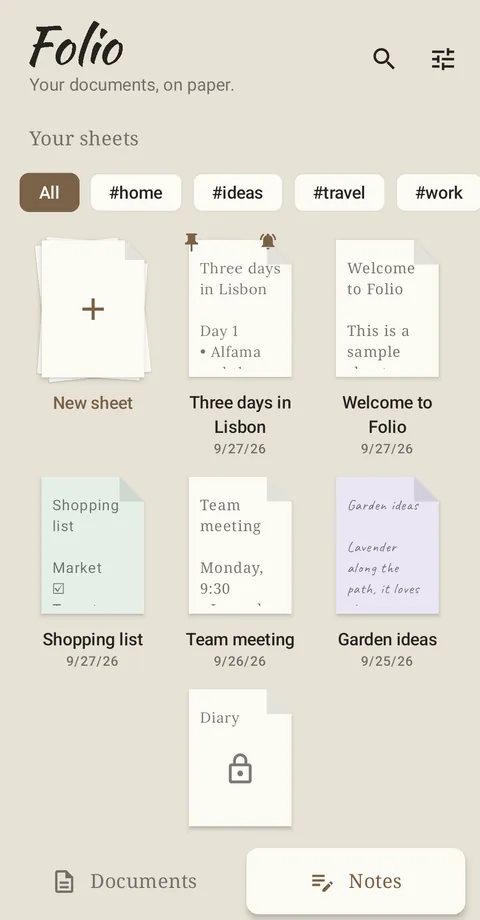
- Documentos: las carpetas del teléfono y los archivos que has abierto hace poco. Toca uno para leerlo. La lupa busca por nombre o por tipo (pdf, docx…).
- Notas: tus hojas, como papeles sobre la mesa. Hoja nueva empieza una en blanco.
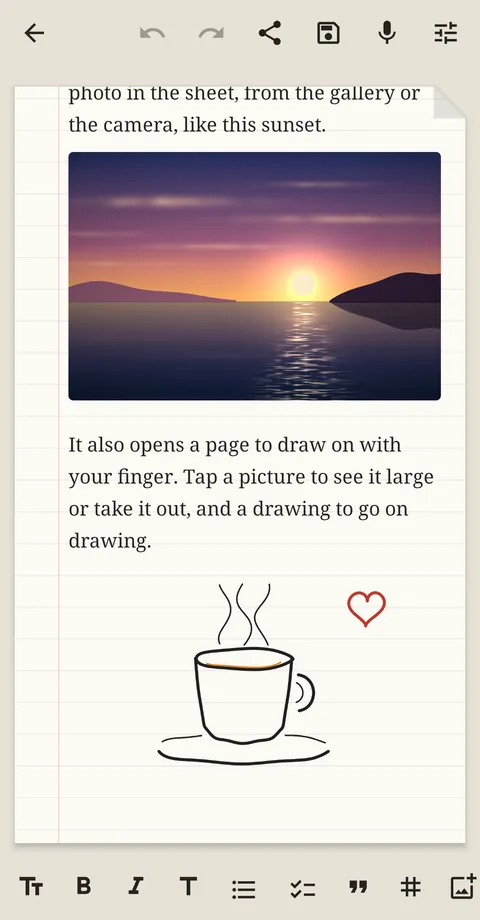
La primera vez encontrarás la hoja Bienvenido a Folio: una hoja de ejemplo con foto y dibujo que enseña todo lo que se puede hacer. Si la borras, vuelve desde Ajustes › Ayuda › Abrir la hoja de ejemplo.
At the bottom there are two tabs:
- Documents: the phone's folders and the files you opened lately. Tap one to read it. The magnifier searches by name or type (pdf, docx…).
- Notes: your sheets, like papers on a desk. New sheet starts a blank one.
The first time you will find the Welcome to Folio sheet: a sample with a photo and a drawing that shows everything you can do. If you delete it, it comes back from Settings › Help › Open the sample sheet.
2Escribir una hojaWriting a sheet
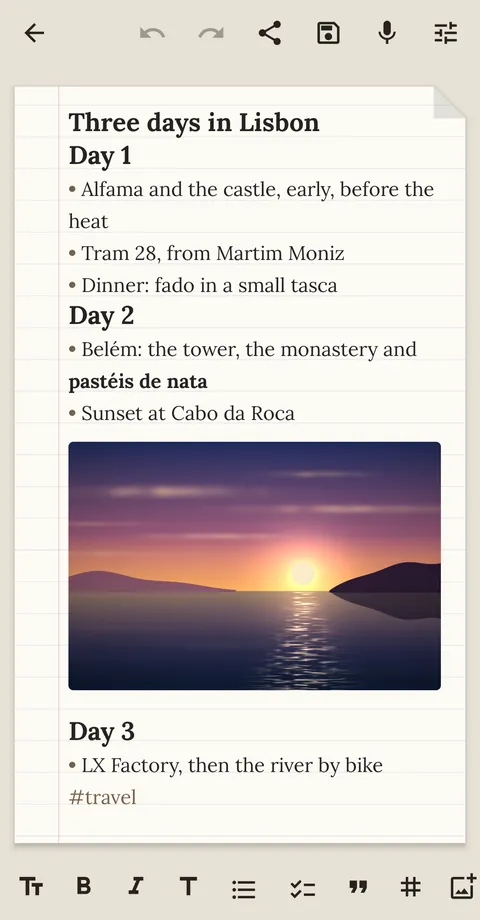
Se guarda sola mientras escribes. La barra de abajo da formato a lo que selecciones o a la línea donde estés:
- Tт letra y tamaño de lo seleccionado (por ejemplo, una frase en letra a mano Pro); sin nada seleccionado, de toda la hoja.
- B negrita, I cursiva, T título.
- Viñetas y tareas con casilla; mantén pulsado el botón para sangrar o quitar sangría.
- Cita, # etiqueta y el botón de imagen (siguiente apartado).
Arriba: deshacer y rehacer, compartir, guardar, micrófono para dictar y los ajustes de la hoja. Al dictar puedes decir «nueva línea», «nueva viñeta», «nueva tarea» o «nuevo párrafo».
It saves itself as you write. The bar at the bottom formats what you select, or the line you are on:
- Tт typeface and size of the selection (a sentence in handwriting Pro, say); with nothing selected, of the whole sheet.
- B bold, I italic, T heading.
- Bullets and tasks with a checkbox; hold the button to indent or outdent.
- Quote, # tag and the picture button (next section).
At the top: undo and redo, share, save, the microphone to dictate and the sheet's settings. While dictating you can say "new line", "new bullet", "new task" or "new paragraph".
3Fotos y dibujosPhotos and drawings
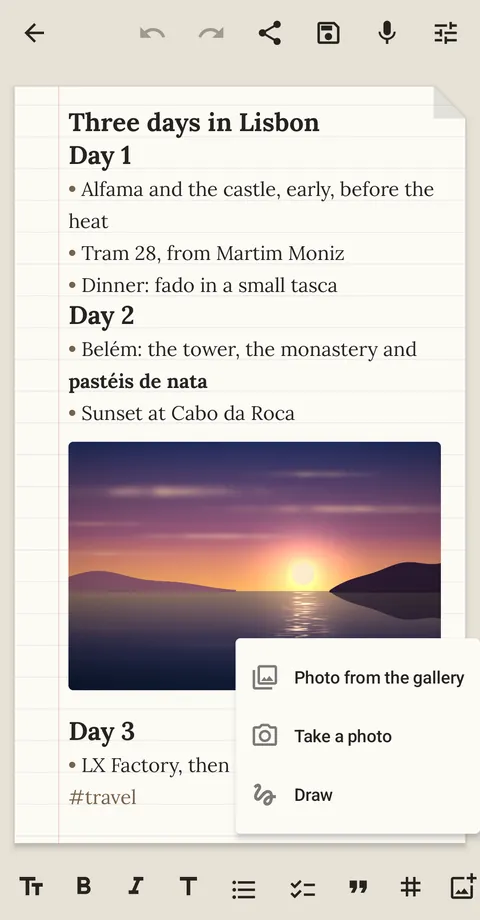
El botón de imagen (el último de la barra) ofrece tres cosas:
- Foto de la galería o Hacer una foto: la foto entra en la hoja donde está el cursor, girada como toca y a un tamaño razonable.
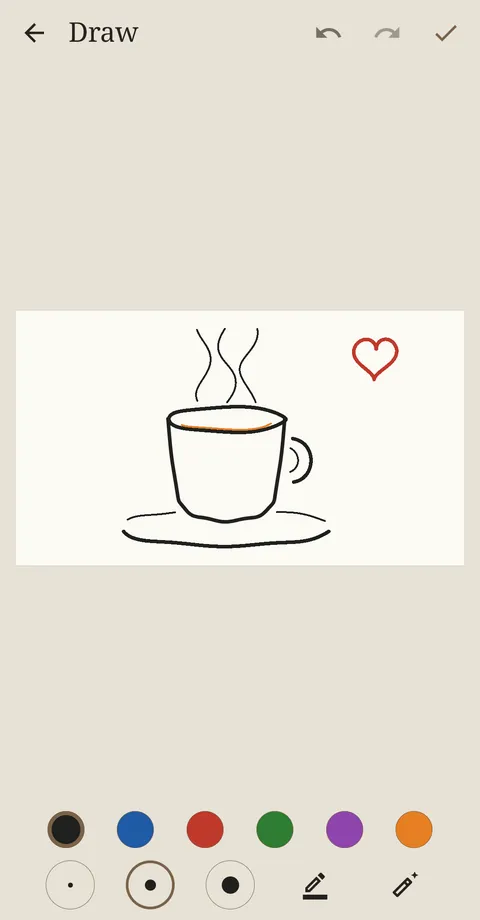
- Dibujar: una hoja para dibujar con el dedo, con seis tintas, tres grosores, rotulador fosforito y goma.
Toca una foto para verla en grande o quitarla. Toca un dibujo para seguir dibujando en él cuando quieras: se guarda trazo a trazo.
Las fotos y los dibujos van también en el PDF, en el Word, en la copia de seguridad y, al exportar a Markdown, en una carpeta images junto al archivo.
The picture button (the last one on the bar) offers three things:
- Photo from the gallery or Take a photo: the photo goes into the sheet where the cursor is, the right way up and at a sensible size.
- Draw: a page to draw on with your finger, with six inks, three widths, a highlighter and an eraser.
Tap a photo to see it large or take it out. Tap a drawing to go on drawing on it whenever you like: it keeps every stroke.
Photos and drawings also go into the PDF, the Word file, the backup and, when exporting to Markdown, into an images folder next to the file.
4Papel, pauta y páginaPaper, ruling and page
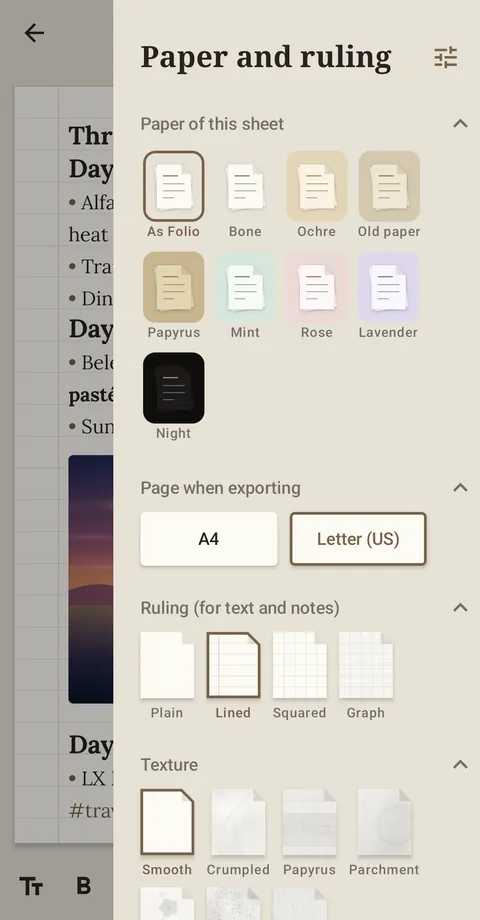
El botón de ajustes de arriba a la derecha, dentro de una hoja, decide cómo sale esa hoja:
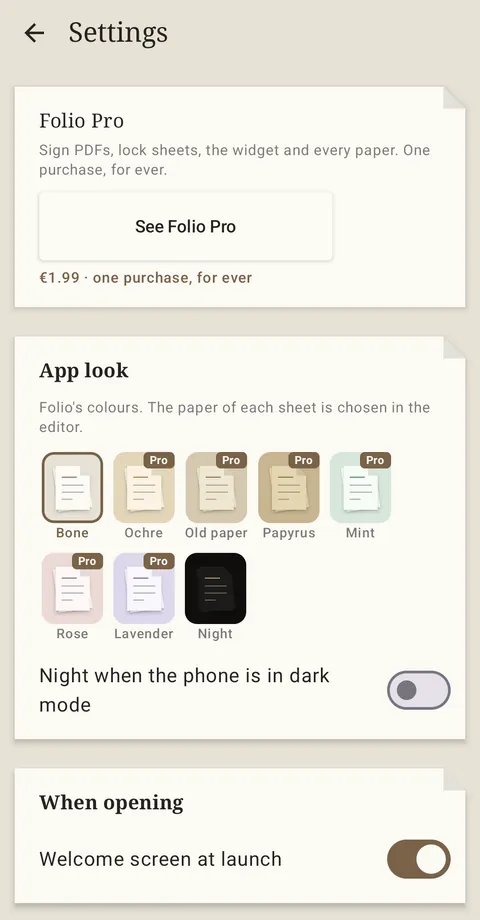
- Papel: el color de la hoja. Hueso y Noche son de todos; ocre, papel viejo, papiro, menta, rosa y lavanda, Pro. Sin Pro puedes probarlos en la hoja mientras el panel está abierto.
- Página al exportar: A4 o Carta, para el PDF, el Word y la impresión.
- Pauta: lisa, rayada, cuadrícula o milimetrada.
- Textura: lisa, o arrugada, papiro, pergamino, flores, kraft y lino Pro.
El aspecto de la aplicación en sí (sus colores y el modo noche) está en Ajustes: una cosa es cómo quieres que salga el documento y otra cómo ves la app.
The settings button at the top right, inside a sheet, decides how that sheet looks:
- Paper: the sheet's colour. Bone and Night are everyone's; ochre, old paper, papyrus, mint, rose and lavender are Pro. Without Pro you can try them on the sheet while the panel is open.
- Page when exporting: A4 or Letter, for PDF, Word and printing.
- Ruling: plain, lined, squared or graph.
- Texture: smooth, or crumpled, papyrus, parchment, flowers, kraft and linen Pro.
The look of the app itself (its colours and night mode) is in Settings: how a document comes out is one thing, how you see the app is another.
5Guardar y exportarSaving and exporting
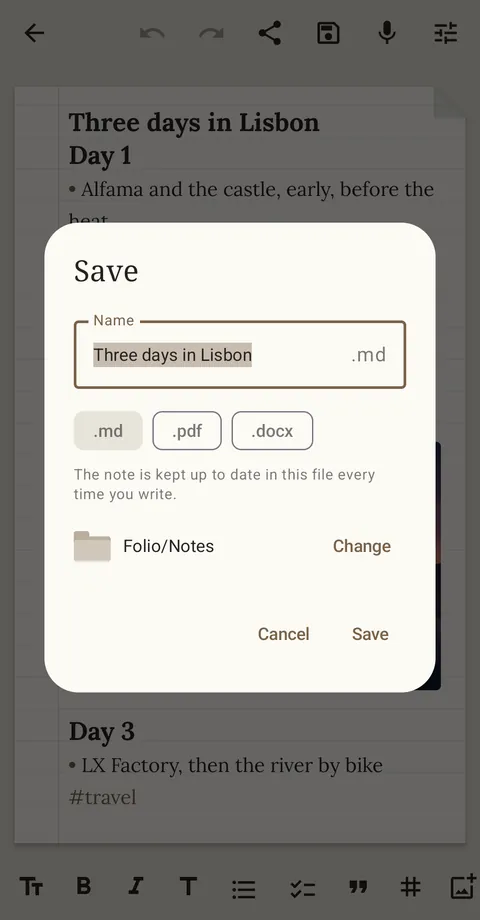
Las hojas viven dentro de Folio. Si además la quieres como archivo, pulsa guardar (el disquete): eliges nombre, formato (.md, .pdf o .docx) y carpeta. Ese archivo se mantiene al día cada vez que escribes.
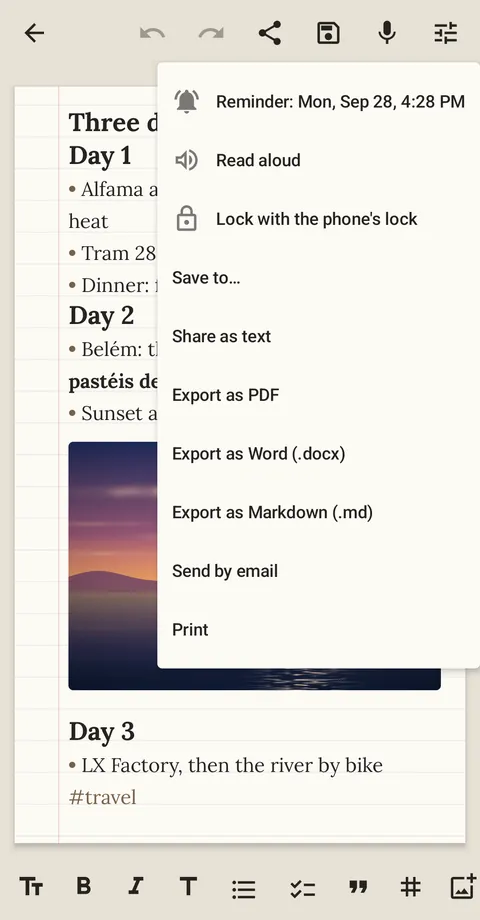
El botón de compartir reúne el resto: exportar a PDF, Word o Markdown, compartir como texto, enviar por correo e imprimir. También Guardar en… para dejar una copia tal como está ahora.
Sheets live inside Folio. If you also want one as a file, tap save (the floppy disk): you choose the name, the format (.md, .pdf or .docx) and the folder. That file is kept up to date every time you write.
The share button has the rest: export to PDF, Word or Markdown, share as text, send by email and print. Also Save to…, to keep a copy as it is now.
6RecordatoriosReminders
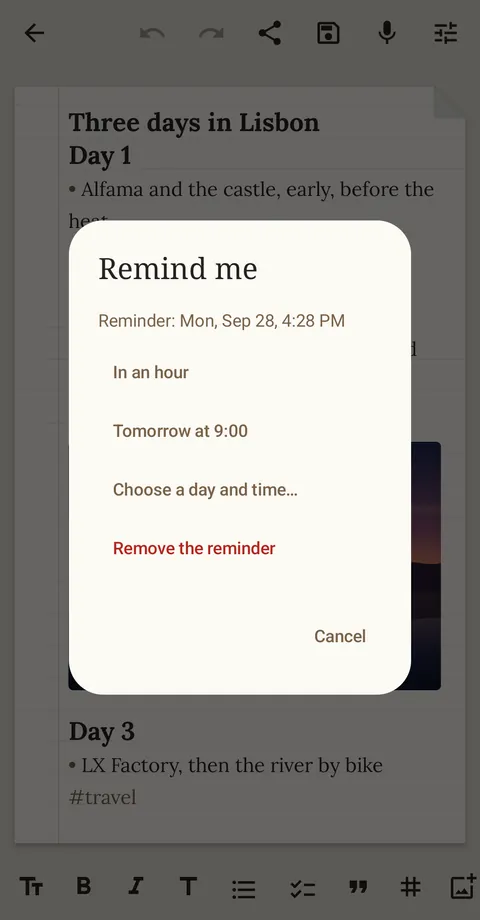
En compartir › Recordarme… elige Dentro de una hora, Mañana a las 9:00 o Elegir día y hora. A esa hora llega un aviso que abre la hoja. La hoja lleva una campanita en Notas mientras tenga recordatorio.
Android puede entregar el aviso hasta 10 minutos tarde. Para que llegue al minuto, Folio te propone permitir «Alarmas y recordatorios». Los recordatorios siguen ahí aunque reinicies el teléfono.
In share › Remind me… choose in an hour, tomorrow at 9:00 or any day and time. At that time a notification arrives that opens the sheet. The sheet shows a little bell in Notes while it has a reminder.
Android may deliver it up to 10 minutes late. To have it on the minute, Folio offers to allow "Alarms & reminders". Reminders survive a restart of the phone.
7Etiquetas, fijar, bloquear y leer en voz altaTags, pinning, locking and reading aloud
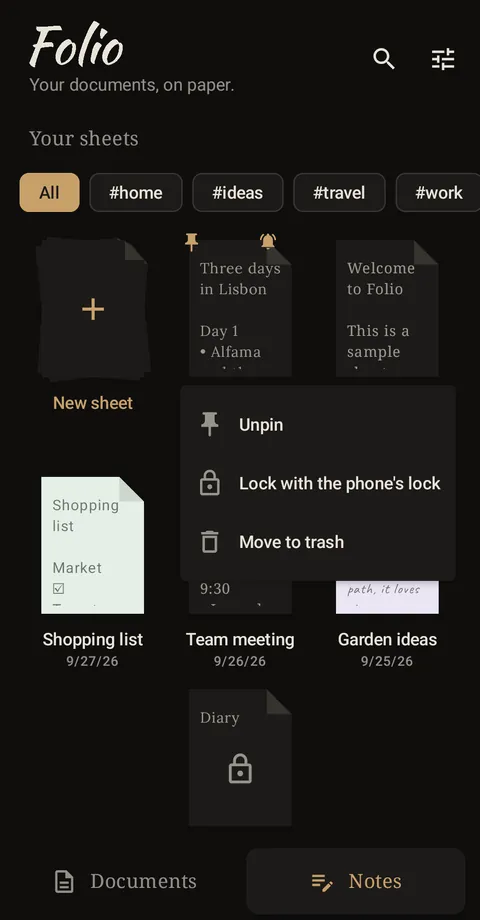
- Etiquetas: escribe #viaje, #trabajo… en cualquier parte de una hoja. Arriba de Notas aparecen como botones para ver solo esas hojas.
- Mantén pulsada una hoja para fijarla arriba, bloquearla o llevarla a la papelera (se guarda 30 días).
- Bloquear Pro con el bloqueo del teléfono: la hoja solo se abre con tu huella, tu cara o tu PIN, y en Notas no se ve lo que pone.
- Leer en voz alta (en compartir): el teléfono te lee la hoja.
El orden de las hojas (recientes, creación o título) y verlas como notas o como lista está en el menú de ajustes de la pantalla de inicio.
- Tags: write #travel, #work… anywhere in a sheet. They show up as buttons at the top of Notes, to see only those sheets.
- Long-press a sheet to pin it to the top, lock it or move it to the trash (kept for 30 days).
- Lock Pro with the phone's lock: the sheet only opens with your fingerprint, face or PIN, and Notes doesn't show what it says.
- Read aloud (in share): the phone reads the sheet to you.
The order of the sheets (recent, created or title), and whether you see them as notes or as a list, is in the settings menu of the home screen.
8Widget y compartir con FolioWidget and sharing to Folio
- Widget Pro: mantén el dedo en la pantalla de inicio del teléfono, entra en Widgets y arrastra Hoja de Folio. Eliges qué hoja enseña y se actualiza sola cuando la cambias. Tócalo para abrirla.
- Desde otras apps: comparte un texto (una web, un mensaje) y elige Nueva hoja de Folio: se convierte en una hoja.
- Abrir con Folio: cuando otra app pregunte con qué abrir un PDF, un Word o un Excel, elige Folio.
- Widget Pro: hold your finger on the phone's home screen, go into Widgets and drag Folio sheet. You choose which sheet it shows, and it updates itself when you change it. Tap it to open the sheet.
- From other apps: share a text (a web page, a message) and choose New Folio sheet: it becomes a sheet.
- Open with Folio: when another app asks how to open a PDF, Word or Excel file, choose Folio.
9Leer documentos y buscar dentroReading documents and searching them
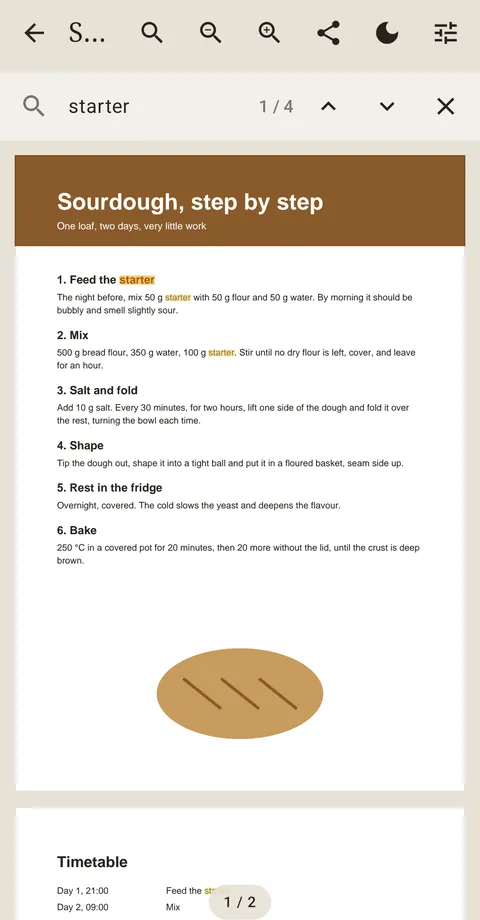
Folio abre PDF, Word, Excel, PowerPoint, OpenDocument, Markdown y texto. Arriba tienes:
- Lupa: busca dentro del documento. Da igual mayúsculas o acentos («camion» encuentra «Camión»). Las flechas saltan de un resultado a otro.
- Zoom con los botones o pellizcando con dos dedos.
- Luna (en PDF): lectura nocturna, con el fondo oscuro.
- Compartir: enviar, imprimir, leer en voz alta y, en los PDF, firmar o anotar.
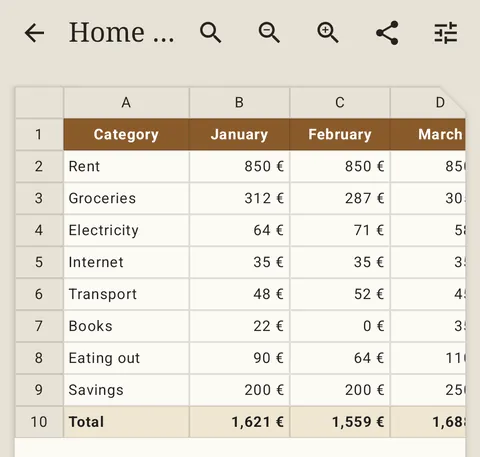
Las hojas de cálculo se ven como en Excel: colores, rellenos, negritas, alineación, formatos de moneda, número y fecha, y el texto largo que se desborda a las celdas vacías.
Folio opens PDF, Word, Excel, PowerPoint, OpenDocument, Markdown and text. At the top you have:
- Magnifier: searches inside the document, whatever the case or accents ("cafe" finds "Café"). The arrows jump from one match to the next.
- Zoom with the buttons or by pinching with two fingers.
- Moon (in PDFs): night reading, on a dark background.
- Share: send, print, read aloud and, in PDFs, sign or annotate.
Spreadsheets look as they do in Excel: colours, fills, bold, alignment, currency, number and date formats, and long text flowing over empty cells.
10Firmar o anotar un PDFSigning or annotating a PDF Pro
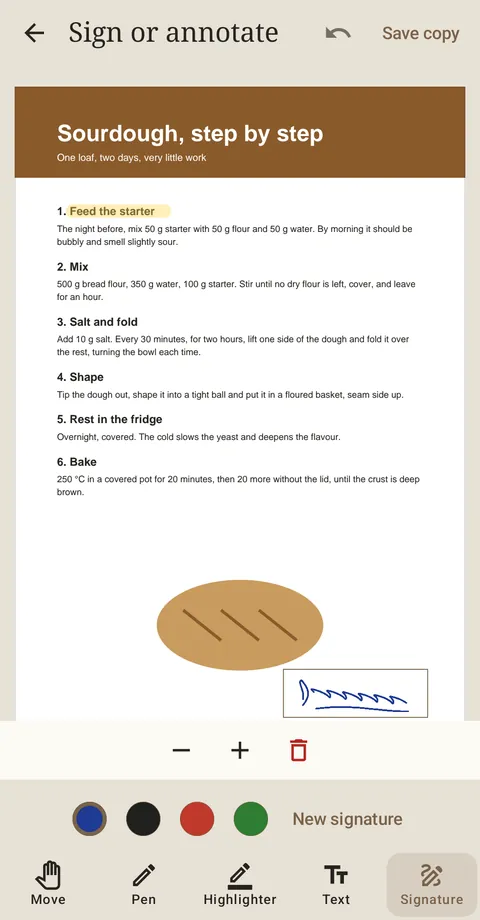
Abre el PDF y entra en compartir › Firmar o anotar. Abajo eliges la herramienta:
- Mover: desplazarte por el documento sin pintar.
- Bolígrafo y rotulador fosforito, en cuatro colores.
- Texto: toca donde quieras escribir (un nombre, una fecha).
- Firma: la primera vez firmas con el dedo sobre la línea; Folio la recuerda para la próxima. Toca la página para ponerla y usa − y + para ajustar el tamaño.
Al terminar pulsa Guardar copia: se crea «nombre (firmado).pdf» en la carpeta Folio. El original no se toca.
Las 3 primeras copias firmadas son gratis, para que lo pruebes con un documento de verdad; arriba ves cuántas te quedan. Después, firmar es de Folio Pro.
Open the PDF and go into share › Sign or annotate. Choose the tool at the bottom:
- Move: scroll through the document without drawing.
- Pen and highlighter, in four colours.
- Text: tap where you want to write (a name, a date).
- Signature: the first time you sign with your finger on the line; Folio remembers it for next time. Tap the page to place it and use − and + to size it.
When you are done tap Save copy: it makes "name (signed).pdf" in the Folio folder. The original is untouched.
The first 3 signed copies are free, so you can try it on a real document; the top of the screen shows how many are left. After that, signing is Folio Pro's.
11IA en el teléfonoAI on the phone
En los teléfonos que traen Gemini Nano, la IA de Android (Pixel 9 y posteriores, Galaxy S25, Xiaomi 15, POCO F7 Ultra y otros), las hojas tienen arriba un botón ✨ con cuatro opciones: resumir, corregir ortografía y gramática, traducir y seguir escribiendo. El resultado puedes ponerlo en lugar del texto, añadirlo a la hoja, llevarlo a una hoja nueva o copiarlo.
Funciona en el propio teléfono, sin internet: nada sale del móvil. En Ajustes › IA en este móvil ves si el tuyo la tiene y puedes descargar el modelo (una sola vez, mejor con wifi). Si tu teléfono no la tiene, el botón ✨ simplemente no aparece.
On phones with Gemini Nano, Android's built-in AI (Pixel 9 and later, Galaxy S25, Xiaomi 15, POCO F7 Ultra and others), sheets have a ✨ button at the top with four options: summarise, fix spelling and grammar, translate and keep writing. You can put the result in place of the text, add it to the sheet, take it to a new sheet or copy it.
It works on the phone itself, without internet: nothing leaves the phone. Settings › AI on this phone tells you whether yours has it and lets you download the model (once, better on Wi-Fi). If your phone doesn't have it, the ✨ button simply isn't there.
12Ajustes y copia de seguridadSettings and backup
En la pantalla de inicio, el botón de ajustes › Ajustes:
- Aspecto de la aplicación: sus colores, y noche cuando el teléfono está en modo oscuro.
- Pantalla de bienvenida al abrir y mantener la pantalla encendida mientras lees.
- Al exportar: el tamaño de página por defecto (cada hoja puede tener el suyo).
- Tus archivos: si quieres que se borren al desinstalar Folio, se guardan en la carpeta propia de la app.
- Copia de seguridad: todas tus hojas (también la papelera, las fotos y los dibujos) en un solo .zip. Guárdalo fuera del teléfono (correo, la nube, un ordenador) o llévalo a otro móvil y usa Restaurar.
- Ayuda: vuelve a abrir la hoja de ejemplo.
On the home screen, the settings button › Settings:
- App look: its colours, and night when the phone is in dark mode.
- Welcome screen at launch and keep the screen on while reading.
- When exporting: the default page size (each sheet can have its own).
- Your files: if you want them deleted when Folio is uninstalled, they are kept in the app's own folder.
- Backup: all your sheets (the trash, photos and drawings too) in one .zip. Keep it off the phone (email, the cloud, a computer) or take it to another phone and use Restore.
- Help: opens the sample sheet again.
13Folio Pro
Todo lo de esta guía que no lleva la etiqueta Pro es gratis y sin límites: leer documentos, escribir hojas, fotos, dibujos, recordatorios, exportar, imprimir, dictar, leer en voz alta y la copia de seguridad. Folio Pro añade cuatro cosas:
- Firmar y anotar PDF, con tu firma guardada.
- Bloquear hojas con tu huella, tu cara o tu PIN.
- El widget en la pantalla de inicio.
- Todos los papeles, texturas y letras a mano.
Una sola compra, tuya para siempre. Sin suscripción, sin anuncios, sin internet.
Está en Ajustes › Folio Pro, y aparece también al tocar algo que lo lleve. El pago lo hace Google Play con tu cuenta; si cambias de móvil, Restaurar compra lo recupera.
Si algún día dejas de tener Pro, nada se pierde: las hojas bloqueadas se siguen abriendo con tu huella, los widgets que ya tengas siguen funcionando y cada hoja conserva su papel.
Everything in this guide without the Pro label is free, with no limits: reading documents, writing sheets, photos, drawings, reminders, exporting, printing, dictation, reading aloud and backup. Folio Pro adds four things:
- Signing and annotating PDFs, with your signature saved.
- Locking sheets with your fingerprint, face or PIN.
- The home-screen widget.
- Every paper, texture and handwriting typeface.
One purchase, yours for ever. No subscription, no ads, no internet.
It is in Settings › Folio Pro, and it also shows up when you tap something that needs it. Google Play takes the payment with your account; on a new phone, Restore purchase brings it back.
If you ever stop having Pro, nothing is lost: locked sheets still open with your fingerprint, the widgets you have keep working and every sheet keeps its paper.